
Live Location Sharing on iPhone and Android with My Location
You leave the station through a different exit. Your friend is already walking toward the café. A message saying “I’m here” becomes outdated before they open it. This is where a live location sharing app earns its place on your phone: a moving point gives both people a useful reference while plans are still unfolding.
If you are searching for the best live location sharing app, start with the situation you need to solve. My Location brings live sharing, current-location tools, saved places and route recording into an app for iOS and Android, with a companion website. This guide explains how those pieces fit together, which sharing mode to choose and what to check before your next meetup.

What makes a location sharing app the best fit?
The right app makes an everyday task easier without leaving you uncertain about what other people can see. For meeting friends, look for a clear live view, a link that is easy to open, an understandable duration and a visible way to stop. For regular outings, saved destinations and recorded routes can be useful alongside sharing.
My Location suits people who want that combination of practical map tools and voluntary sharing. An iPhone user and an Android user can each install the app, while a recipient can follow a shared live link in a browser. There is no universal winner for every household or trip: choose around the features you will actually use, and check the current store listing for device compatibility.
A pin, a live point or a route: share the right thing
A current-location pin answers “Where am I now?” It is appropriate when you are waiting at an entrance or giving someone a meeting point. It does not become a moving location simply because you sent it through a messaging app.
Live location sharing updates a moving point while your session is active. Use it when you are approaching a friend or coordinating a pickup. In My Location, this live view shows your position; it is not a shared archive of everywhere you have been or a complete route recording.
A shared place map or completed route has a different job. You can publish a snapshot of places or a route for someone to review. Later edits to the original do not update that snapshot. Keep this distinction in mind: stopping live sharing and deleting a previously published snapshot link are separate actions.
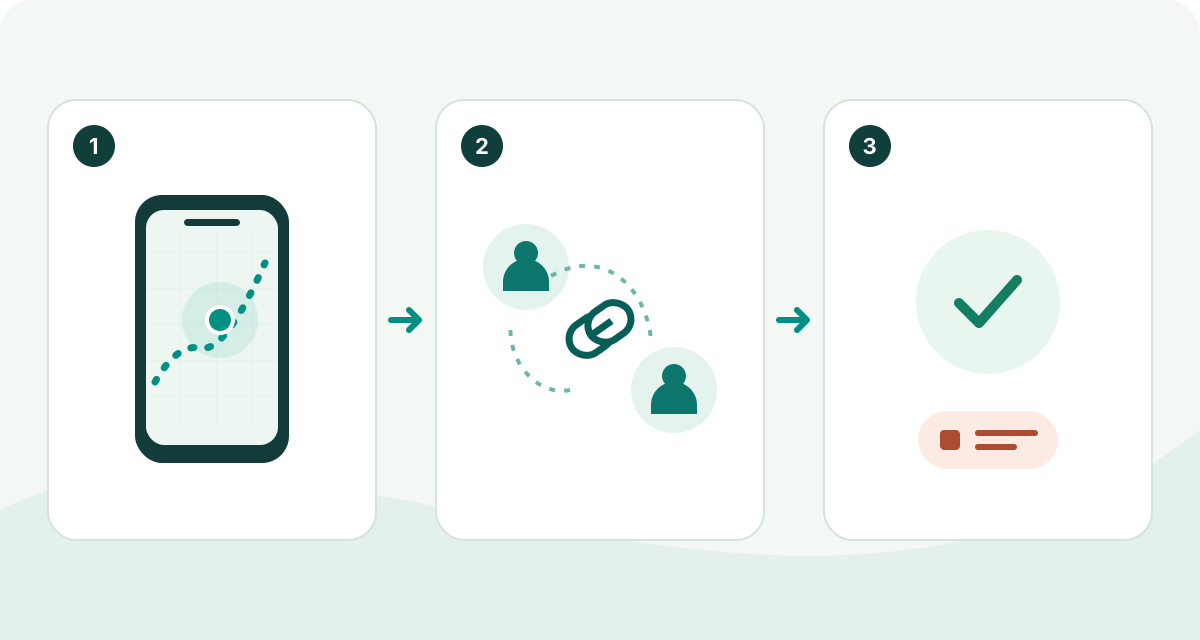
How to share live location on iPhone and Android
- Install My Location and find your position. Open the app on your iPhone or Android phone and allow the location access needed for the feature you want to use. Confirm that the point shown is plausible before you send it.
- Choose the audience. Use Friends when you are signed in and want to manage sharing with individual friends. Choose Anyone with link when a shareable browser link better fits the plan.
- Choose the available duration. Start with the shortest period that covers the meetup. Longer options may require Pro, and account status affects the available session length.
- Send the invitation or link. Put it in the conversation you are already using. Add a useful instruction such as “Meet at the north entrance” so a moving point has context.
- Check and finish. Ask the recipient to open the view, check that it updates, and stop sharing when you have met. You can end an active session manually instead of waiting for its timer.
The native apps and the browser have different operating conditions. Phones manage permissions, connectivity and background activity; a browser tab can be suspended when you switch away or lock the screen. Test the setup you intend to use, especially before relying on updates during a longer journey.
Three everyday situations where live sharing helps
Meeting at a busy station or event
Send a live link as you approach, then agree on a recognizable landmark. Large stations have several entrances, and a location point cannot tell your friend which floor you are on. “Outside the west exit beside the ticket machines” is still useful. Once you settle at a fixed spot, a single pin may be all you need.
Coordinating a walk, run or ride
Share your live point with someone who expects you, and record the outing separately if you want to keep the route. These are different features: recording helps you review the path and statistics afterward; live sharing helps the recipient see your current progress. Choose the right activity and check the session duration before leaving.
Meeting again during a city break
Save the hotel, meeting square or parking spot before your group separates. Later, use live sharing for the approach and saved places for the destination. This avoids asking an old message to do two jobs: describe where somebody was earlier and show where they are heading now.
Keep the audience and duration clear
Friends sharing requires sign-in and includes controls for sharing with individual friends. Anyone-with-link sharing is convenient, but the link should be treated as access to the live view: send it only to the intended audience and avoid posting it publicly. Location sharing works best when everyone understands and agrees to the purpose.
Available timed options include 30 minutes, one hour and four hours. Free sessions last up to four hours, and links created while signed out always have the same four-hour maximum. Signed-in Pro users can share for up to 24 hours; “Until I stop” still has that limit. Check the choices shown in your app when starting. A manual stop is useful when a journey ends early, and a timer helps when you forget.
Place Alerts add another layer for approved friends: arrival or departure notifications depend on the friend's approval and their ongoing live sharing with the requester. Alerts can be paused or revoked and do not extend a sharing session. They are an optional coordination feature, not a way to locate someone who has not agreed to share.
Beyond live sharing: the My Location feature guide
A good sharing workflow often starts before you press Share. Here are the wider tools available across the My Location apps and website, with platform differences called out.
- Current location, address and GPS coordinates. View your position, search for an address or place, or select a map pin. Use latitude and longitude when an address is insufficient. The iPhone app supports copying decimal degrees or degrees, minutes and seconds; the website also offers a coordinate converter.
- Saved places. Keep useful locations with names, notes and marker styles, bookmark them and organize them in collections. Both mobile apps allow five free collections, with unlimited collections in Pro.
- Route recording and statistics. Record walks, runs, rides and hikes; pause, resume and name recordings. Review distance, time, pace or speed, elevation and splits where data is available. These metrics are estimates. iOS also supports animated route replay.
- Sharing places and completed routes. Publish a map snapshot when someone needs your selected destinations or an outing you already recorded. Manage that published link separately from the original content.
- Friends and Place Alerts. Invite and accept friends, choose who receives your location, remove or block contacts, and manage approved arrival or departure alerts. Alerts can run once or repeat while the sharing conditions remain met.
- Account sync. Signed-in sync helps you use supported saved data across devices. Account access and the Pro entitlement on a particular platform are separate considerations.
- Map file tools. Import and export saved places in GPX, KML and GeoJSON with Pro, and import GPX tracks with Pro. Exporting an already recorded track as GPX is a separate supported action; do not confuse it with the premium saved-place transfer tools.
- Browser map workspace and drawn routes. Draw and edit routes on the website, then view synced drawn routes in the mobile apps and export GPX. Those drawn routes are read-only on mobile. The website also supports location lookup, coordinates, places and sharing; browser background limits apply.
- Directions. iOS provides driving and walking route previews and voice-guided navigation. Android offers driving, walking and cycling directions with navigation handoff to map apps, plus a Street View handoff where the external app and coverage support it.
- Map appearance. Choose standard, satellite or hybrid views, appearance settings and supported traffic overlays. Android also has a terrain map option. Available layers differ between platforms.
- Home-screen widgets. iOS offers Bookmarks and Save Location widgets; Save Location opens the place editor. Android provides saved-place navigation and Save Location widgets for shortcuts to frequent tasks.
- iPhone Live Activity. The iOS app supports a Live Activity on the Lock Screen and Dynamic Island where available. This is an iOS-specific feature, not a promise of the same interface on Android.
Feature availability can differ by platform, app version and plan. The iOS app is ad-free; the Android listing includes ads. Use the website feature overview alongside the current store description to decide which version fits your routine.
If the live location looks wrong or stops updating
First distinguish an inaccurate point from an old point. A position near the wrong entrance may reflect a weak location fix; a point that has not moved for a while may reflect connectivity, permissions, an ended session or suspended background activity. A street address is a readable interpretation of coordinates, not proof of the correct doorway.
Check device location settings and the app's permission, confirm an internet connection, reopen the app and check whether sharing is still active. Outdoors or near a clearer view of the sky, a phone may obtain a better fix than deep inside a building. In a browser, bring the sharing tab back into view. Avoid assuming a stale point is someone's present position.
Longer use also consumes battery. Start with a charged phone, agree on a meeting point in advance and keep another way to communicate. Live sharing is a useful planning tool, but it cannot guarantee continuous updates or replace an agreed plan when connectivity disappears.
Check Pro and platform details before a longer trip
Begin with the sharing options you need today, then consider Pro for extended sessions or file-transfer workflows. Starting live sharing directly from the recording screen also requires Pro. Pricing, available purchase options and feature access should be checked in the app or its store listing. An iOS Pro subscription does not automatically enable Pro on Android or the web.
This matters when a group mixes devices: everyone can choose their own platform, but do not assume all accounts have the same extended features. For a short meetup, a clearly explained live link and a sensible duration often matter more than a long feature checklist.
Live location sharing: frequently asked questions
Can an iPhone user share with someone on Android?
Yes. My Location has iOS and Android apps, and a recipient can open a shared live link in a browser. Friends sharing uses signed-in accounts; a browser-viewable link is useful when you want a simple handoff.
Does the recipient have to install My Location?
A shared live link can be viewed in a browser. Installing the app is useful for someone who also wants to share, record routes or manage their own saved places, but it is not required just to follow that link.
Will someone see my entire location history?
The live view shows a moving point, not your full recorded route or location history. Sharing a completed route or a collection of places is a separate action with its own published snapshot link.
Can I stop sharing before the timer ends?
Yes. End the active session manually when you no longer need it. If you have also published a place map or route snapshot, manage or delete that separate link as appropriate.
Does live sharing work without internet?
Sending and receiving fresh live updates needs connectivity. A device may obtain a location fix in some offline conditions, but that does not deliver the new position to another person or guarantee that maps will load.
Which My Location app should I download?
Use the App Store link for iPhone or the Google Play link for Android below. These link to the specific My Location apps discussed here, avoiding confusion with similarly named products.
Make your next meetup easier
Start with one real plan: save the destination, choose your sharing audience and duration, and send a live link when you set off. My Location combines that simple workflow with GPS coordinates, places and route tools you can return to after the meetup.